Open the Sharable Planner on the OneNote application on your Devices
Step 1: Check your email inbox (including the spam or junk folder) to find the share invitation email from “SharePoint Online.” Then click “Open” to access the planner files.
* If the shared folder is empty, please try a different browser or use a private/incognito window.
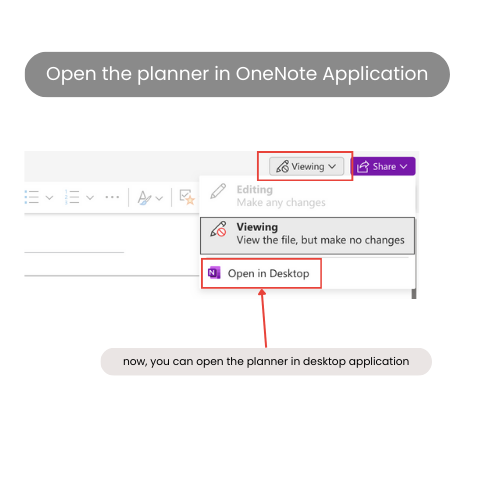
Step 2: After opening the shared folder, click on the planner files to view them online. Then, use the “Open in desktop” button to open them in your OneNote application on your devices.
* You can find the “Open in desktop” button in the upper-right corner of the interface.
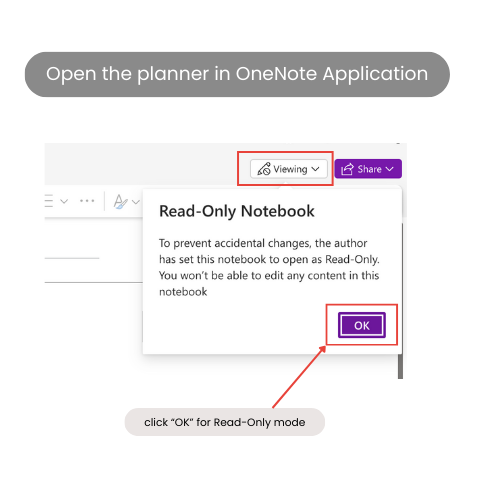
* When you click the “Viewing” button, a “Read-Only” notification may pop up. Don’t worry; just click “OK,” and the “Open in desktop” option will then appear.
Copy the OneNote Planner
IMPORTANT !!!
Before you copy the planner, please read these carefully:
In order to make all hyperlinks work correctly, make sure you copy all pages in the same order / section with the shareable planner and DO NOT delete any pages!
Please DO NOT click the hyperlinks before you copy all pages! If you do that before all the copies are done, you might find it will link to the shareable planner!
DON’T forget to close the shareable planner when it is all done. Then you will find all hyperlinks work perfectly on your new planner.
Step 1: Create a NEW notebook after open the shareable planner in the OneNote application.
* If you find a highlight warning that says this planner is READ-ONLY, don’t worry, ignore it, then will be fine.
Step 2: Copy the sections from the shareable planner to your new notebook.
Now, back to the shareable planner, press the section, then click “Copy” option. (Please copy the section ONE BY ONE. In my experience, selecting multiple sections at once, the copy progress may not be successful.)
Choose the new notebook from the pop-up window. Wait for the copy process to finish.
Then you can REPEAT THESE STEPS until you copy all sections from the shareable planner.
Hello!
I'm Dan
A digital planner creator. Using digital planners has been a game-changer for my life and work. Now, I am creating effective digital planners and organizational tools to help you make your life and work more efficient.