
How to use the OneNote Planner on Multiple Devices
You can use the OneNote planner on mulitiple devices, such as laptop, MacBook, iPad, tablet, or phone.

You can use the OneNote planner on mulitiple devices, such as laptop, MacBook, iPad, tablet, or phone.
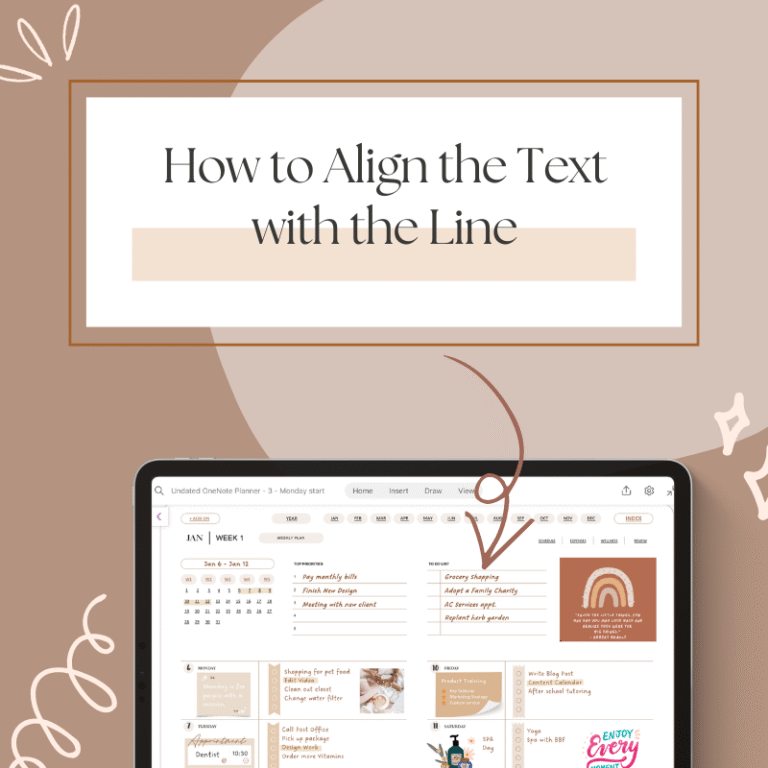
Align the text with line in OneNote sometimes will be little tricky. This tips will help you to do that easily.
Sometimes, you may want to use a OneNote planner with different Microsoft accounts, such as your work and personal accounts, or when collaborating with team members. In these cases, you can use the "Share" button to facilitate this.
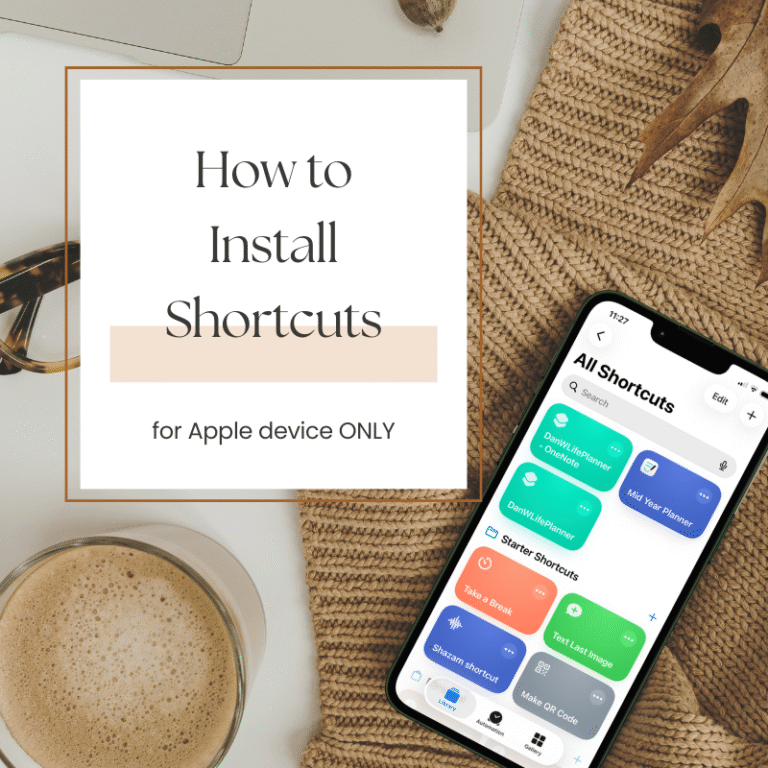
For Apple devices users, in order for Apple Calendar, Apple Reminder, and Google Calendar links to work from OneNote or GoodNotes planner, you are required to install a shortcut.
There are multiple ways to add the date to an undated OneNote planner.
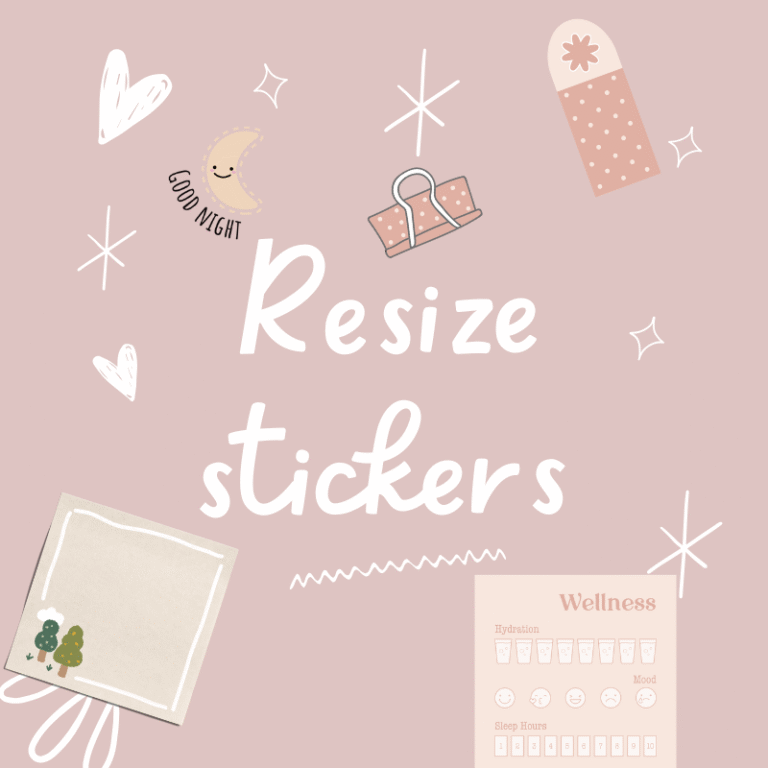
Easily add multiple stickers will make you plan more effectivly.
By using stickers or widgets, you can also modify a OneNote planner that has the image background.
You can customize any thing you prefer on a fully editable OneNote planner. I will show you how to change color, fonts, or contents in this instruction.
I’m sharing my three most frequently questions used on OneNote planner, which will help you use the planner better.
How to insert stickersto OneNote Planner – for PNG or JPG stickers You can use any PNG or JPG stickers in OneNote Planner by using the insert picture function. Hello! I’m Dan A digital planner creator. Using digital planners has…