Troubleshooting
for OneNote Planner
Importing Planner
When I import the planner by using the method for Mac users, it seems never finished, what should I do?
Typically, the importing process takes less than 20 minutes. If it takes longer, please close the webpage and follow the steps below to try again:
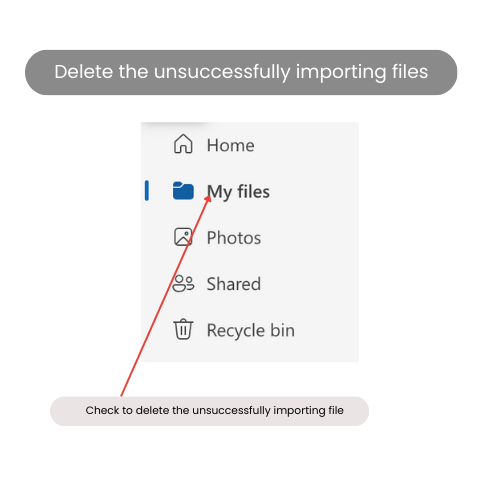
- Log in to your OneDrive account, check the “My Files” folder, and delete the folder that you imported unsuccessfully.
- Check your OneDrive, make sure you have enough space for the planner.
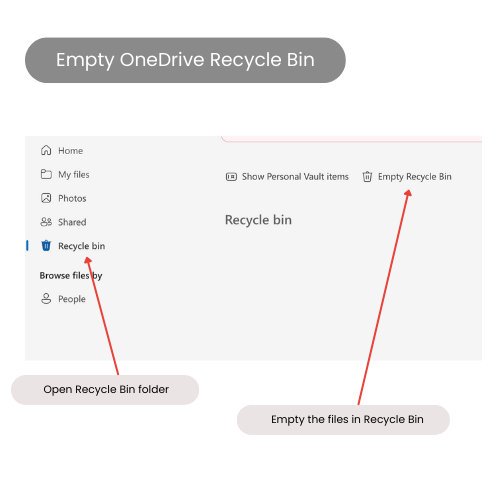
- Manually delete any unnecessary files from your OneDrive storage (including the Recycle Bin)
- Then try importing the unzipped planner folder again.
when I click the "Open" on the shared invitation email, I see an empty OneDrive folder. How to fix it?
Don’t worry, just change to another browser or use the private window or incognito window of the browser to try again. Then the planner files should show up.
When I open the shared planner online, it shows "Read-Only", how to fix it?
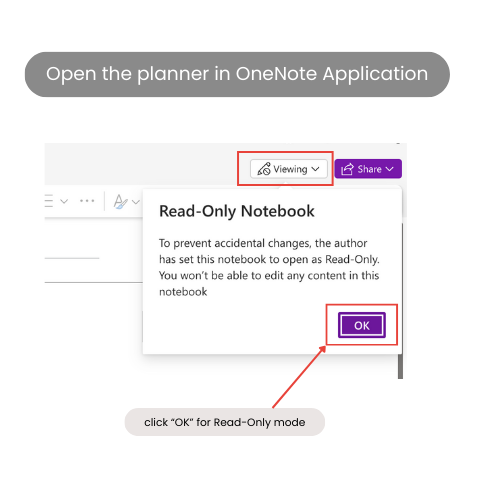
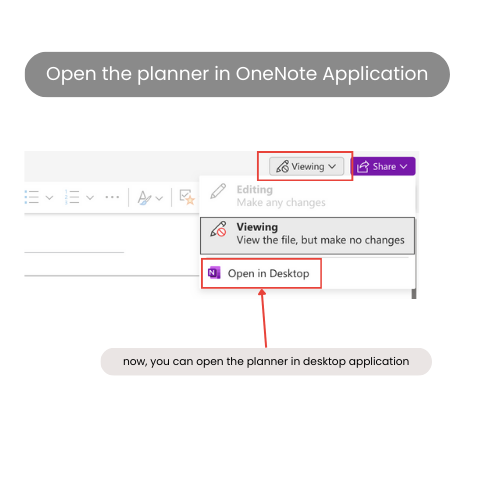
Don’t worry; when you click the “Viewing” button on the online planner, you might see a “Read-Only” pop-up warning. Just click “OK”.
Then click “Viewing” again, and you will find the option to open the planner in desktop.
Using Planner
Can I use the OneNote planner on multiple devices?
Yes, you can use this planner on multiple devices by installing the OneNote application and signing into the same Microsoft account.
Click HERE, to download the OneNote application.
When I opened the planner online, the contents and hyperlinks seemed disordered. How can I fix this?
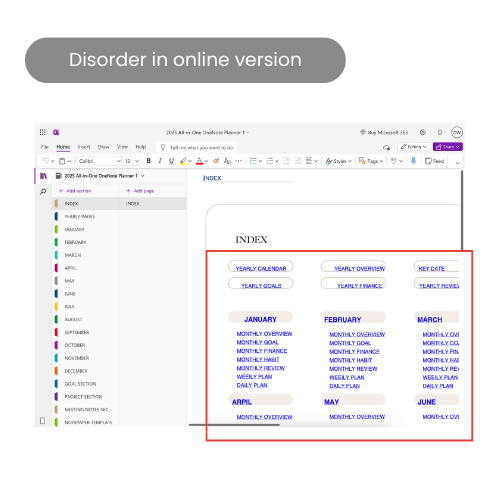
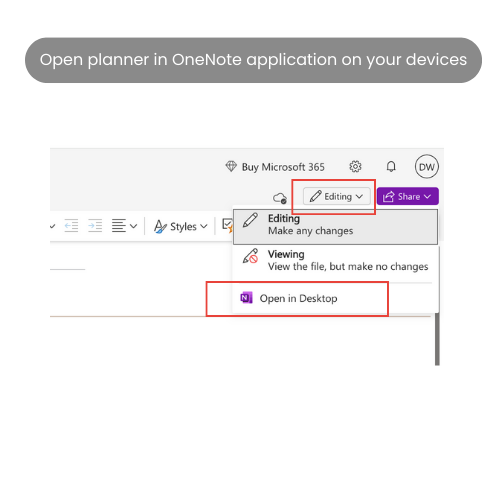
Don’t worry, due to the feature limitations of the online and other versions. When you open the planner in the OneNote application on your devices, it will be fixed automatically.
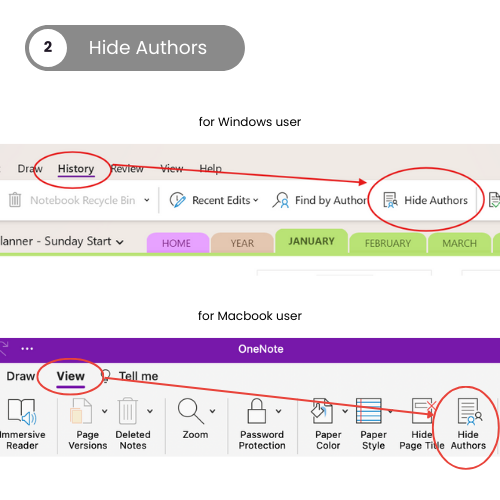
There are many author marks on the planner, how can I remove it?
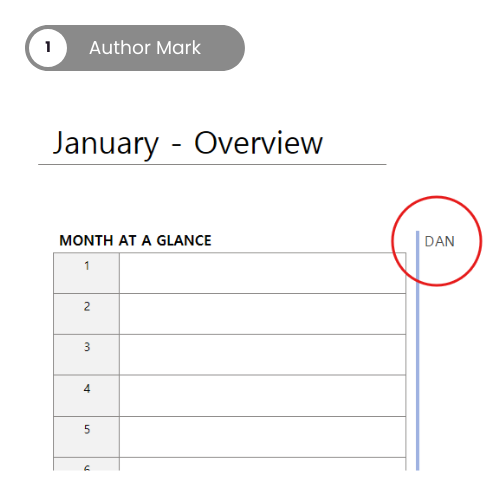
According to OneNote, author marks cannot be removed or deleted, but you can hide them.
- For Windows users – Click on “History” and then select “Hide Authors” to make the marks disappear.
- For Macbook users – Click on “View” and select “Hide Authors“.
Can I customize multiple pages (such as all weekly pages or daily pages) at once?
No, OneNote does not offer a direct feature to customize multiple pages simultaneously. You can only modify them one by one.
why there is no "Shading" option for tables in OneNote on iPad?
According to Microsoft, the “Shading” option is currently NOT available in OneNote on iPad. As of now, that feature is only accessible on the desktop version of OneNote.
This can be a bit frustrating if you’re working on the go or prefer using your iPad. Unfortunately, there’s no workaround on the iPad app itself.