After importing the OneNote planner, you can access it across multiple devices when you sign in with the same Microsoft account. Your notes and updates will sync automatically, so you can seamlessly switch between your laptop, MacBook, iPad, tablet, or phone without losing any changes.
Please note:
Make sure the planner is already synced in your OneDrive. (click HERE to access OneDrive)
Make sure to sign in with the same Microsoft account on all devices you want to use.
Open the planner on Windows Computer
Step 1: Open the OneNote application on your Windows computer.
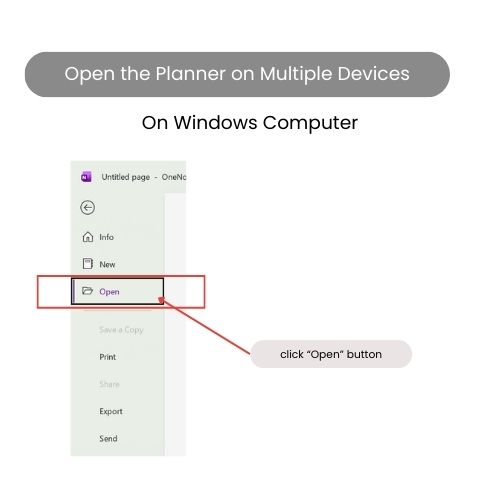
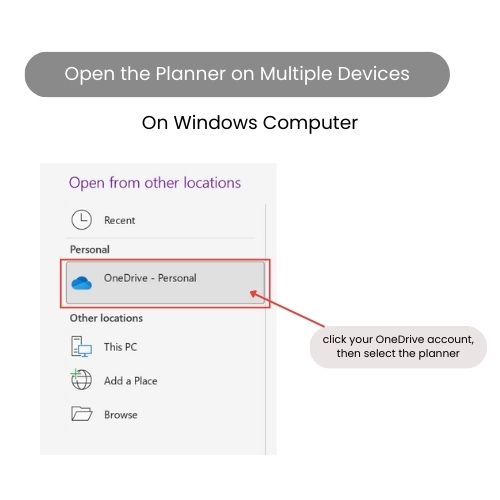
Step 2: Click the “File” menu, then select the “Open” option, and choose the planner from your OneDrive.
Open the planner on MacBook
Step 1: Open the OneNote application on your MacBook.
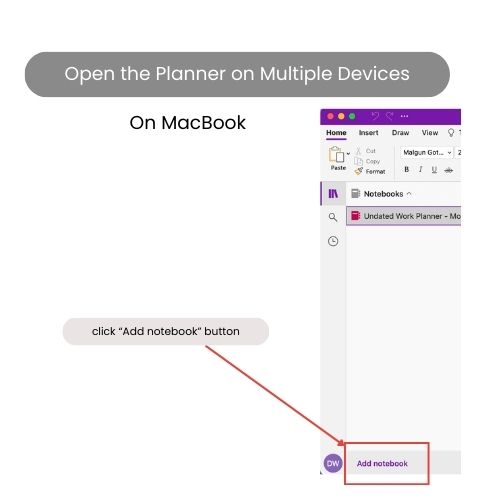
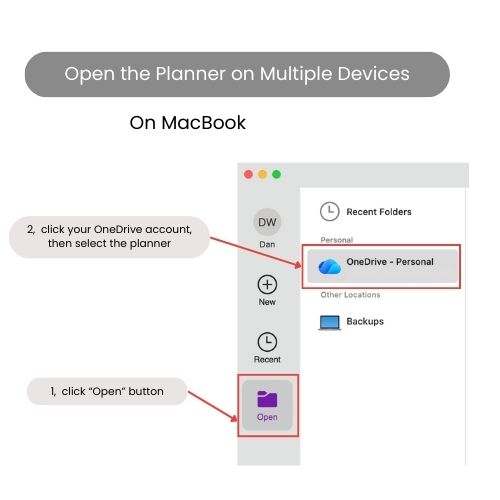
Step 2: Click the “Add notebook” button at the OneNote interface. Then click the “Open” option, select the planner from your OneDrive.
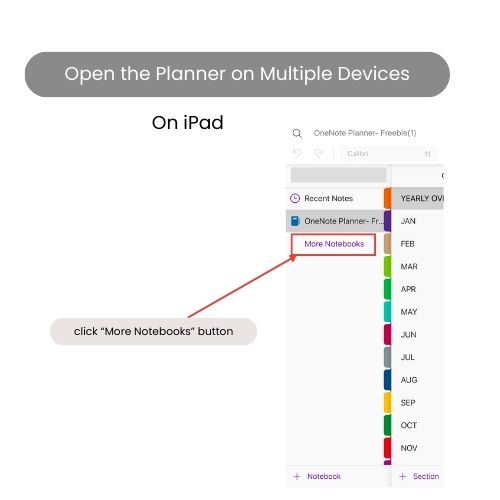
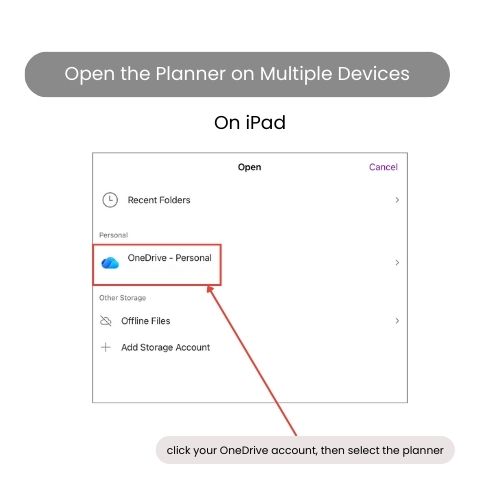
Open the planner on iPad
Step 1: Open the OneNote application on your iPad.
Step 2: Click the “More Notebooks” button. Then click the “Browse” button on the pop-up window, select the planner from your OneDrive.
Hello!
I'm Dan
A digital planner creator. Using digital planners has been a game-changer for my life and work. Now, I am creating effective digital planners and organizational tools to help you make your life and work more efficient.