To select an entire table, click in the table, and then click the Table Move Handle in the upper-left corner.
To select a row, column, cell, or group of cells, click and drag your mouse pointer to highlight the cells you want.
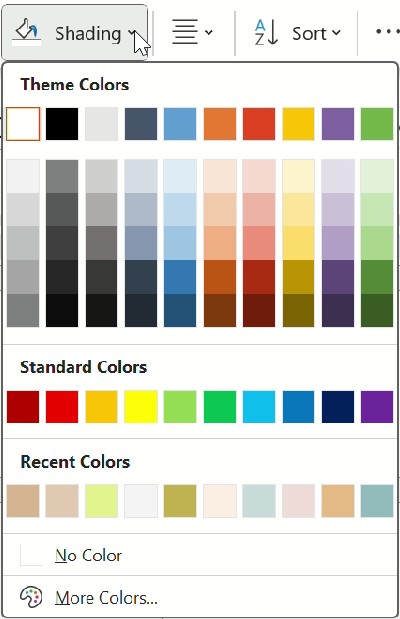
Step 2: On the Table Design tab (Table tab in OneNote), click the Shading menu.
Step 3: Under Theme Colors or Standard Colors, select the shading color you want. Or, for more color options, click More Colors.
Change Fonts
Just like you use other Office applications, you can change the font by using the “Home” command.
Watch the video to know more.
Hello!
I'm Dan
A digital planner creator. Using digital planners has been a game-changer for my life and work. Now, I am creating effective digital planners and organizational tools to help you make your life and work more efficient.