How to use a OneNote Planner
with Multiple Microsoft accounts
(Share a OneNote Planner)
For the OneNote planner, you can access it on multiple devices by signing in with the same Microsoft account. However, there are times when you may want to use it with different Microsoft accounts, such as your work and personal accounts, or when collaborating with team members. In these cases, you can use the “Share” button to facilitate this.
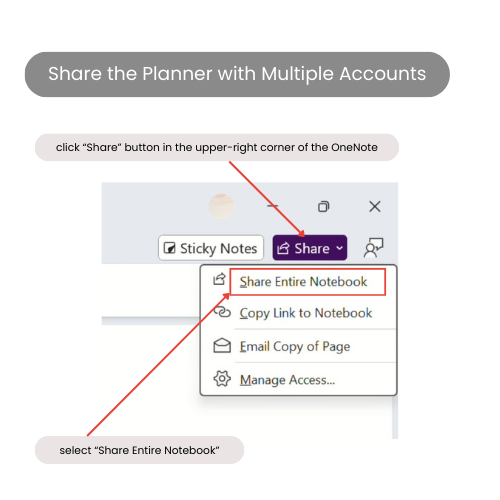
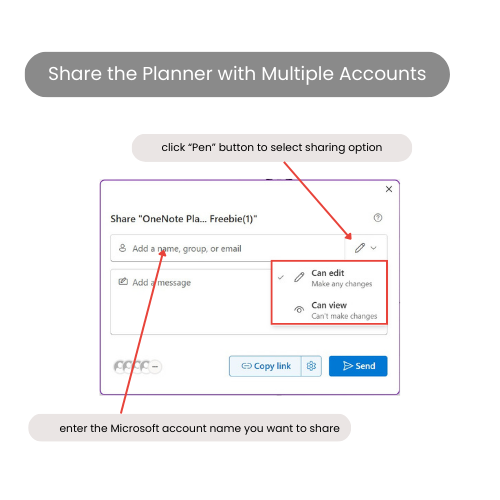
For Windows users
Step 1: Click the “Share” button in the upper-right corner of the OneNote desktop version. Then, select “Share Entire Notebook” to share the whole planner.
Step 2: Enter the Microsoft account name you want to share, and choose the share option.
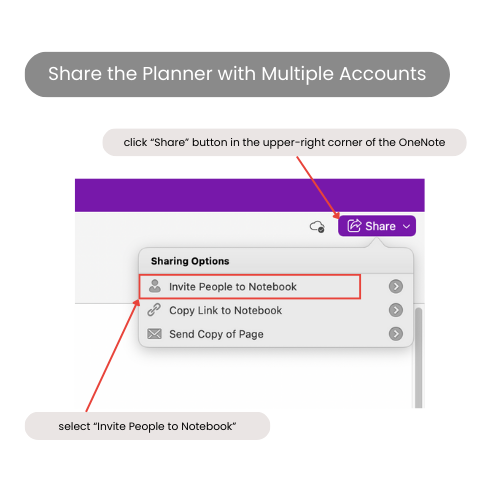
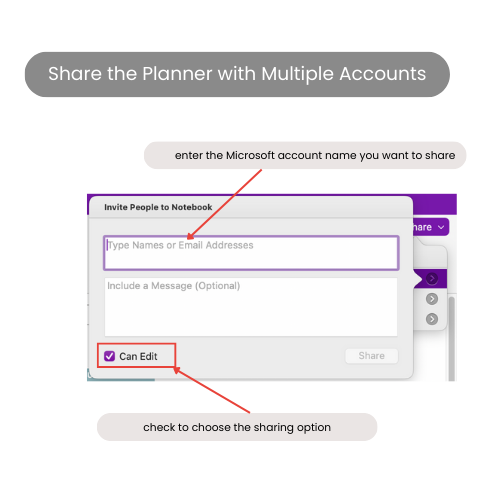
For Mac users
Step 1: Click the “Share” button in the upper-right corner of the OneNote desktop version. Then, select “Invite People to Notebook” to share the whole planner.
Step 2: Enter the Microsoft account name you want to share, and check the share option.
Hello!
I'm Dan
A digital planner creator. Using digital planners has been a game-changer for my life and work. Now, I am creating effective digital planners and organizational tools to help you make your life and work more efficient.