How to easily add or resize Multiple Stickers / Images to OneNote Planner
Add Multiple Stickers / Images to OneNote Planner at once
Method 1 : Using the “Picture” command.
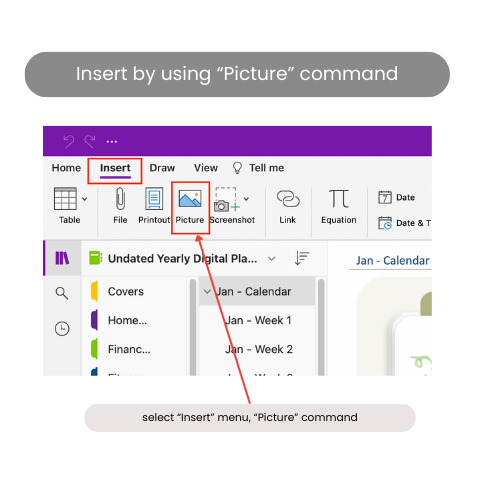
Open the OneNote application, then click the “Insert” menu and select the “Picture” command.
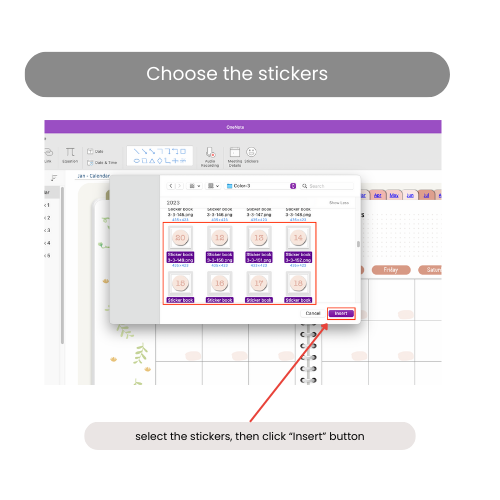
Then, select multiple stickers or images, and click the “Insert” button.
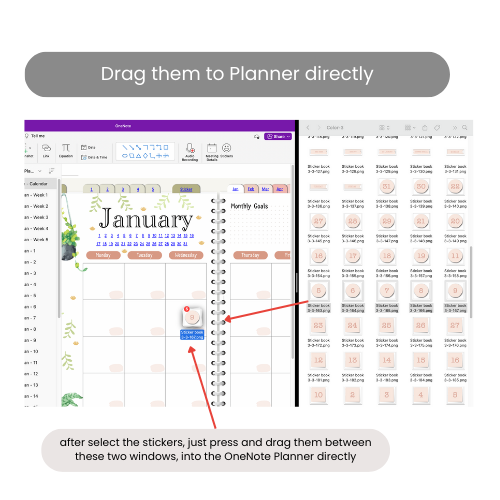
Method 2 : Drag stickers to the planner directly.
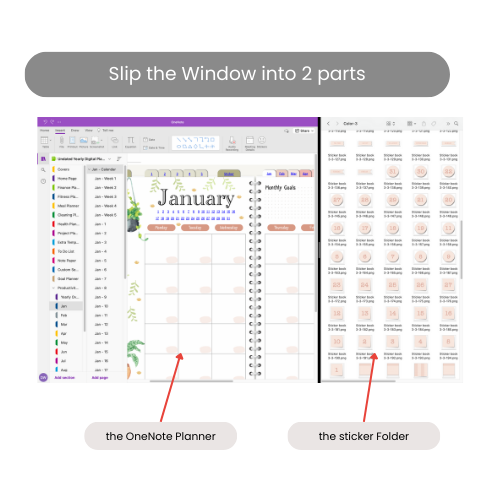
Split the window into 2 parts, one is for OneNote, the other is for the sticker folder.
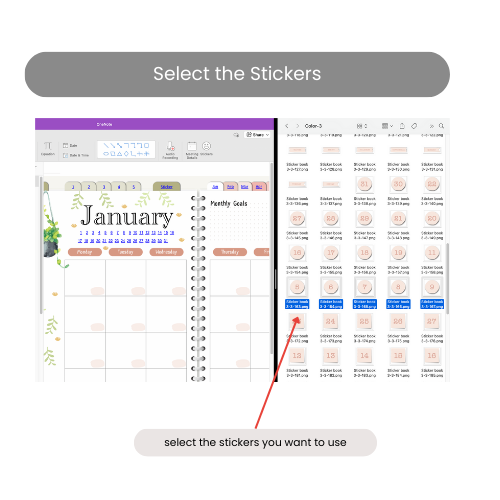
Select the stickers, then drag them into OneNote directly.
Resize Multiple Stickers / Images at once
By using the “Lasso” tool, you can resize multiple stickers or images at once.
Hello!
I'm Dan
A digital planner creator. Using digital planners has been a game-changer for my life and work. Now, I am creating effective digital planners and organizational tools to help you make your life and work more efficient.